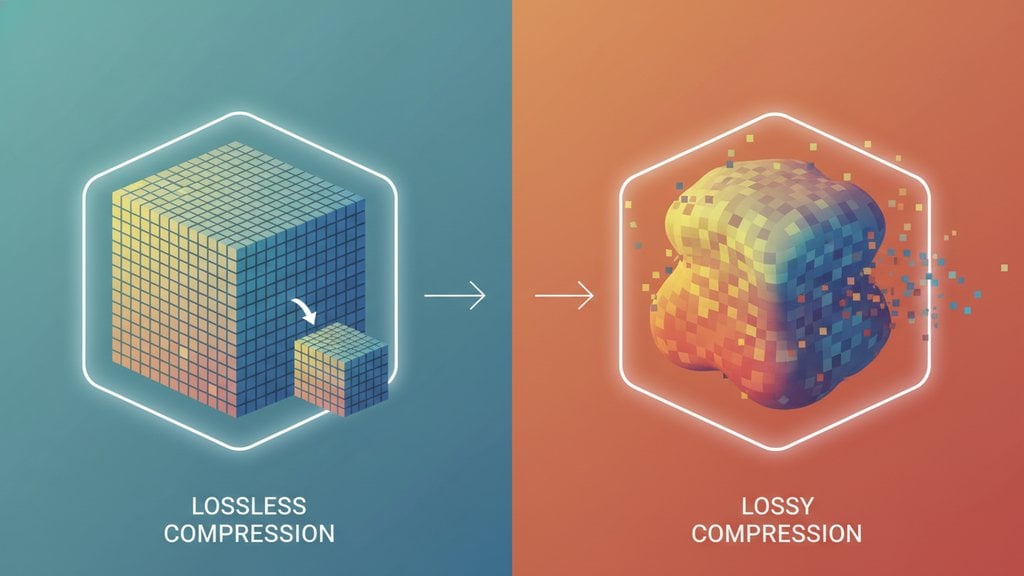
The two main image compression types are lossy and lossless, and choosing between them comes down to one question: can you afford to lose any image data? Lossy compression permanently discards some pixel information to shrink files dramatically, while lossless compression reduces file size without touching a single pixel. Understanding the difference will save you from blurry product photos, bloated websites, and hours of second-guessing.
Content Table
How Image Compression Actually Works
Every image is a grid of pixels, and each pixel stores color data. An uncompressed 4000x3000 photo can easily hit 30-40 MB. Compression algorithms look for patterns and redundancies in that data and find smarter ways to store it.
Think of it like packing a suitcase. Lossy compression is rolling your clothes tightly and leaving a few items behind. Lossless compression is vacuum-sealing everything so it all fits, and when you unzip the bag, every item is exactly as you packed it.
Lossy Compression Explained
Lossy compression works by permanently removing data the algorithm decides the human eye is unlikely to notice. The most common technique is chroma subsampling , which reduces color detail while keeping brightness (luminance) detail sharp. Our eyes are far more sensitive to light and dark contrast than to color shifts, so this trade-off is usually invisible at reasonable quality levels.
JPEG is the classic example. At quality 80, a JPEG can be 5-10x smaller than the original with no visible degradation. At quality 40, you start seeing the telltale blocky "artifacts" in smooth gradients and around edges. That artifact pattern is called compression artifact and it is irreversible once baked in.
Key characteristics of lossy compression:
- Each save cycle degrades quality further (generation loss)
- Produces the smallest file sizes
- Best for photos and complex, continuous-tone images
- Not suitable for images you plan to re-edit and re-save repeatedly
- Supported by JPEG, WebP (lossy mode), and HEIC
Lossless Compression Explained
Lossless compression finds redundant data patterns and encodes them more efficiently, but keeps every original bit intact. When the file is decoded, it is mathematically identical to the original. There is zero quality degradation, ever.
PNG uses lossless compression by default. A PNG of a logo with a solid red background does not store the color value for every red pixel individually. Instead, it stores something like "red, 1200 times in a row," which takes far less space. This is called run-length encoding , one of several lossless techniques.
Key characteristics of lossless compression:
- No quality loss, ever, no matter how many times you compress or decompress
- Larger files than lossy, especially for photos
- Best for graphics, logos, screenshots, and text-heavy images
- Safe for source files you will edit later
- Supported by PNG, WebP (lossless mode), GIF, and TIFF
Lossy vs Lossless: Side-by-Side Comparison
| Factor | Lossy | Lossless |
|---|---|---|
| File size reduction | Very high (60-90% smaller) | Moderate (10-50% smaller) |
| Image quality | Slightly reduced (often imperceptible) | Pixel-perfect original |
| Re-editing safety | Not safe (generation loss) | Fully safe |
| Best for | Photos, hero images, backgrounds | Logos, UI graphics, screenshots, text |
| Common formats | JPEG, WebP (lossy), HEIC | PNG, WebP (lossless), GIF, TIFF |
| Artifacts possible? | Yes, at low quality settings | No |
Which Image Formats Use Which Type
Most formats are locked to one method, but WebP is the notable exception that supports both. Here is how the common formats break down:
- JPEG: Always lossy. Uses chroma subsampling and discrete cosine transform (DCT) encoding. The JPEG standard was designed specifically for photographic content.
- PNG: Always lossless. Uses DEFLATE compression (a combination of LZ77 and Huffman coding). Supports transparency.
- WebP: Supports both. Google designed it to replace both JPEG and PNG with better compression ratios in both modes. Lossy WebP typically beats JPEG by 25-35% at equivalent visual quality.
- GIF: Lossless but limited to a 256-color palette. That palette limit is its own form of quality reduction for photos, which is why GIF is only suitable for simple animations and graphics.
- TIFF: Lossless by default. Common in professional photography and print workflows where preserving every pixel matters.
- HEIC/HEIF: Lossy, based on H.265 video compression. Used natively by iPhones and produces very small files with excellent quality.
When to Use Each Type
Use lossy when:
- You are publishing final images to a website or app and will not re-edit them
- The images are photographs with smooth color gradients
- Page load speed and bandwidth are priorities (e-commerce product photos, blog hero images)
- Storage space is limited and minor quality trade-offs are acceptable
Use lossless when:
- You are saving a source or master file that you will edit again
- The image contains sharp edges, text, or flat color areas (logos, UI mockups, diagrams)
- Transparency (alpha channel) must be preserved perfectly
- The image will be used in print or professional production pipelines
- Any pixel-level accuracy matters (medical imaging, scientific data visualization)
The Quality Slider: Finding the Sweet Spot
When you compress photos with lossy encoding, the quality setting is the most important variable. Most tools express this as a number from 1 to 100. Here is what the ranges actually mean in practice:
- 85-100: Near-original quality. File size savings are modest (10-30%). Use for print-quality exports or when pixel fidelity genuinely matters.
- 70-84: The sweet spot for most web images. Visually indistinguishable from the original at normal viewing sizes, with 40-60% size reduction. A default of 82 lands squarely here for good reason.
- 50-69: Noticeable quality loss on close inspection. Acceptable for thumbnails or very small display sizes.
- Below 50: Obvious artifacts. Only use when file size is absolutely critical and image quality is secondary.
The 82 default quality setting used by most professional tools is not arbitrary. It sits at the point where the SSIM (Structural Similarity Index) curve flattens out: going higher adds file size with minimal visible improvement, and going lower starts producing visible artifacts. For batch compression of mixed photo content, 82 is a reliable starting point.
GIF Optimization: A Special Case
GIF sits in an interesting middle ground. The compression itself is lossless (LZW encoding), but the format is limited to 256 colors per frame. For anything more complex than simple animations or flat-color graphics, that color ceiling is the real quality bottleneck, not the compression algorithm.
Optimizing a GIF typically means reducing its color palette. If your animation only uses 64 distinct colors, storing 256 wastes space. Adaptive palette reduction rebuilds the color table to match only the colors actually present in the image, which can cut GIF file sizes by 30-50% with zero visible change.
You can push this further by reducing the max color count below 256. For a simple two-color icon animation, dropping to 8 or 16 colors produces a tiny file. For a full-color animated banner, staying at 256 is safer to avoid visible banding.
Compress images with full control over lossy vs lossless
Our free Image Compressor lets you choose between lossy and lossless compression for JPG, PNG, WebP, and GIF files. Adjust the quality slider, toggle lossless mode, and batch compress up to 50 images at once to reduce file size without sacrificing the quality you need.
Compress Your Images Free →
No. Once a JPEG is saved with lossy compression, the discarded data is gone permanently. Saving that JPEG as a PNG wraps the already-degraded pixel data in a lossless container, but it does not restore the original quality. The only way to avoid lossy damage is to keep your original source file before any JPEG encoding happens.
Generally yes for modern browsers. Lossy WebP typically produces files 25-35% smaller than JPEG at equivalent visual quality, and it also supports transparency and lossless mode. Browser support is now near-universal. The main reason to still use JPEG is compatibility with older systems or software that does not recognize WebP files.
No. Because PNG uses lossless compression, you can compress and decompress it as many times as you like with no quality loss whatsoever. The pixel data is always recovered perfectly. This is one of the main advantages of lossless formats for source files and assets you plan to edit or re-export repeatedly.
For most web photos, a quality setting between 75 and 85 hits the best balance between file size and visual quality. A default of 82 is a solid starting point. For thumbnails or small preview images, you can go as low as 65-70 without noticeable issues. For hero images or product photos where quality matters, stay at 80-85.
Some PNG files are already highly optimized, or they contain metadata and color profiles that certain tools handle differently. If a PNG was already compressed at the maximum level, running it through a lossless compressor again may produce a file that is the same size or marginally larger due to header overhead. This is normal and not a sign that anything went wrong.
Usually not. Product photos are photographs with smooth gradients where lossy compression at quality 80-85 produces files that are visually identical to the original at a fraction of the size. Lossless mode for product photos can result in files 3-5x larger with no visible quality benefit for shoppers. Save lossless for your master files and logos, not published product images.