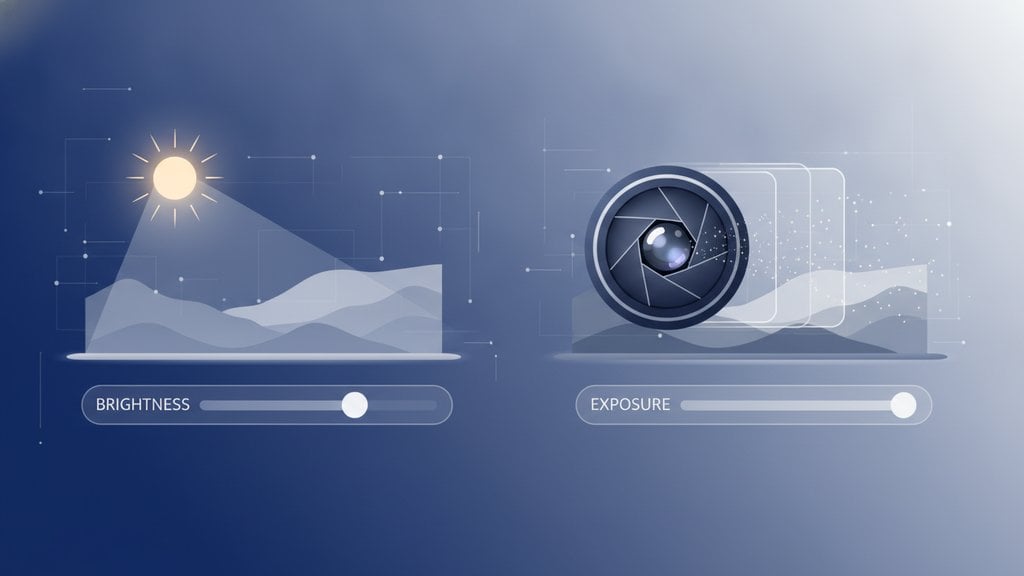
Brightness and exposure are not the same thing, even though they both affect how light or dark your image looks. Exposure is captured in-camera and determines how much light hits your sensor, while brightness is a post-processing adjustment that shifts tonal values mathematically after the fact. Confusing the two leads to muddy edits, lost detail, and images that never quite look right.
Content Table
What Is Exposure?
Exposure is the total amount of light that reaches your camera sensor during a shot. It is set by three variables working together:
- Shutter speed - how long the sensor is open to light (e.g., 1/500s vs. 1/30s)
- Aperture - how wide the lens opening is (e.g., f/1.8 vs. f/11)
- ISO - the sensor's sensitivity to light (e.g., ISO 100 vs. ISO 3200)
These three form what photographers call the exposure triangle. Change any one of them and you change the exposure. A photo that is overexposed has too much light recorded, blowing out highlights. A photo that is underexposed has too little, crushing shadows into black.
Exposure is fundamentally a capture-time decision. Once you press the shutter, the light data is baked in. With JPEG files, that data is baked in almost completely. With RAW files, you have more room to recover it later, but there are hard limits.
What Is Brightness?
Brightness is a slider or adjustment in post-processing software that shifts the luminance values of pixels across the entire image. When you drag a brightness slider up, the software multiplies or adds to every pixel's tonal value uniformly (or near-uniformly, depending on the tool).
The critical thing to understand: brightness does not add or recover actual light data. It just remaps the numbers that already exist. If your highlights are already clipped to pure white (255 in 8-bit), dragging brightness up cannot bring back the detail that was never recorded. You are just pushing already-white pixels further into white.
In tools like Adobe Lightroom, the "Exposure" slider in the Develop panel is actually closer to what most people mean by brightness adjustment in a general sense, because it shifts the whole tonal range. The standalone "Brightness" control in older Photoshop dialogs works differently, applying a non-linear curve that protects shadows and highlights to some degree.
The Key Differences Side by Side
| Aspect | Exposure | Brightness |
|---|---|---|
| Where it happens | In-camera, at capture time | In software, after capture |
| What it changes | Amount of light data recorded by sensor | Numerical pixel values in the file |
| Can recover clipped detail? | Yes, via exposure compensation before shooting | No, lost data cannot be invented |
| Affects tonal range? | Yes, the full dynamic range captured | Shifts values but does not expand range |
| Controlled by | Shutter speed, aperture, ISO, metering modes | Slider in editing software |
| Quality impact | Directly affects noise, sharpness, depth of field | Can introduce banding or posterization if overdone |
How Exposure Works in Camera
Your camera's metering system reads the light in a scene and suggests settings to achieve a "correct" exposure. There are several metering modes that determine how the camera reads the scene:
- Evaluative/Matrix metering - reads the whole frame and averages it (good for most situations)
- Center-weighted metering - prioritizes the center of the frame
- Spot metering - reads only a small area, usually around the focus point
When the camera's suggestion is wrong for your creative intent, you use exposure compensation to override it. On most cameras this is a dial or button labeled +/- and measured in stops. Adding +1 stop doubles the light. Subtracting -1 stop halves it. Exposure compensation is one of the most useful tools for getting the right exposure in tricky lighting without switching to full manual mode.
How Brightness Works in Editing Software
Once an image is on your computer, brightness becomes a tonal adjustment. Different software implements it differently, and this matters a lot in practice:
- Photoshop's Image > Adjustments > Brightness/Contrast - applies a non-linear adjustment that tries to protect extreme highlights and shadows. Raising brightness to +100 does not blow out every highlight uniformly.
- Lightroom's Exposure slider - shifts the entire tonal range by a set number of stops. Moving it +1.0 is roughly equivalent to having shot with +1 stop more exposure. This is the most "exposure-like" brightness control in common editing tools.
- Basic brightness sliders in simpler apps - often apply a linear multiply across all channels, which can clip highlights quickly.
Understanding how these tools handle the tonal range differently helps you choose the right one for the job. For fine tonal adjustment, curves give you the most control because you can target specific tonal zones (shadows, midtones, highlights) independently rather than shifting everything at once.
If you are working on color alongside tonal adjustments, it helps to understand how brightness interacts with hue and saturation. Our guide on color correction basics covers how tonal shifts can affect perceived color and how to compensate for that in your image editing workflow.
When to Use Exposure vs. Brightness
The short answer: always try to get the exposure right in-camera first. Post-processing brightness adjustments are a tool for refinement, not rescue.
Here is a practical guide to which tool fits which situation:
- Scene is too dark and you have not shot yet - increase exposure via aperture, slower shutter, higher ISO, or positive exposure compensation.
- Shot is already taken and slightly underexposed - use the Exposure slider in Lightroom (or equivalent) to lift it. With a RAW file you can often recover 1-2 stops cleanly.
- Shot is already taken and highlights are blown - use the Highlights recovery slider, not a brightness reduction. Reducing overall brightness to fix blown highlights will darken midtones and shadows unnecessarily.
- You want to brighten just the midtones without touching shadows or highlights - use a curves adjustment, not a brightness slider. Pull the midpoint of the curve upward.
- You are making final output adjustments for screen or print - a subtle brightness or gamma adjustment can be appropriate here, but keep it small (under ±20 in most tools).
Raw Image Processing and Exposure Latitude
RAW files store unprocessed sensor data, which is why they give you so much more flexibility when correcting exposure in post. A RAW file from a modern full-frame camera (like a Sony A7 IV or a Nikon Z6 III) typically has 13-15 stops of dynamic range. That means there is real light data sitting in the shadows and highlights that a JPEG would have simply discarded.
Exposure latitude refers to how many stops you can push or pull an exposure in post before quality degrades noticeably. With a well-exposed RAW file, you can often:
- Push shadows by +2 to +3 stops before noise becomes objectionable
- Pull highlights by -2 to -3 stops to recover blown sky detail
With a JPEG, that latitude shrinks dramatically, sometimes to less than +/-0.5 stops before banding or color shifts appear. This is because JPEG processing has already discarded the out-of-range data and compressed the tonal information.
This is why the advice "expose to the right" (ETTR) exists in RAW image processing workflows. By exposing as bright as possible without clipping highlights, you capture the maximum amount of shadow data (which lives in the upper part of the sensor's range), giving you more latitude to pull down in post without amplifying noise.
Brightness adjustments in post cannot replicate this. A brightness slider on an underexposed JPEG will brighten the image but also amplify the noise and color noise that was baked in at capture time.
Tonal adjustments also work closely with white balance. Shifting exposure can make colors appear warmer or cooler depending on your starting white balance setting. If you notice color casts after a large exposure correction, check out our article on white balance correction to understand why that happens and how to fix it.
Common Mistakes and How to Avoid Them
- Using brightness to fix overexposure - Reducing brightness on an overexposed image darkens the whole photo but does not restore clipped highlight detail. Use the Highlights slider or shoot with -1 stop exposure compensation next time.
- Ignoring the histogram - The histogram is the most reliable way to evaluate exposure. A spike jammed against the right edge means blown highlights. A spike jammed against the left means crushed shadows. Trust the histogram over how the image looks on your camera's LCD, which can be misleading in bright sunlight.
- Applying brightness in JPEG before conversion - If you need to convert or compress an image after editing, apply tonal adjustments before the final export, not after. Re-editing a compressed JPEG introduces generational quality loss.
- Treating Lightroom's Exposure slider as identical to camera exposure - It is close, but not identical. Camera exposure affects depth of field, motion blur, and noise in ways that a post-processing slider never can.
Understanding how color spaces like sRGB and Adobe RGB interact with tonal adjustments is also worth knowing. The same brightness value can look different depending on whether your file is tagged with sRGB or a wider gamut space, particularly when the image is displayed on different screens.
Convert your brightness and exposure corrected images without quality loss
After you have nailed your brightness vs exposure adjustments, make sure your final image survives the format change. Our free image converter handles the conversion so your tonal work stays intact.
Convert Your Image Free →
It depends on the file format and how severe the problem is. With a RAW file, you can typically recover 1-2 stops of overexposure in the highlights and 2-3 stops of underexposure in the shadows before quality degrades noticeably. With a JPEG, recovery is much more limited because the out-of-range data was discarded at capture. Clipped highlights (pure white pixels) cannot be recovered in any format since there is no data left to work with.
When you raise brightness uniformly, it pushes all tonal values upward, including midtones and shadows that may already be in a good range. This compresses the contrast between tones and makes the image look flat or washed out. Instead of using a global brightness slider, try lifting only the shadows with a curves adjustment or the Shadows slider, which targets the darker tones without affecting the midtones and highlights as heavily.
Exposure compensation is a camera control (usually a +/- dial or button) that overrides the camera's automatic metering by a set number of stops. Use it when the camera's metered exposure is clearly wrong for your subject. Common situations include: shooting a subject against a bright sky (use negative compensation to avoid a silhouette), shooting in snow or on a bright beach (use positive compensation because the camera tends to underexpose very bright scenes), or shooting a dark subject on a dark background (use negative compensation).
They are similar in effect but not identical. Lightroom's Exposure slider is calibrated in stops (like camera exposure) and shifts the entire tonal range in a way that mimics changing camera exposure. A generic brightness slider in simpler tools often applies a linear or gamma-based shift that behaves differently in the highlights and shadows. For serious editing, Lightroom's Exposure slider combined with separate Highlights, Shadows, Whites, and Blacks sliders gives you much more precise tonal control than a single brightness control.
Yes, significantly. A RAW file stores 12-14 bits of data per channel, giving you thousands of tonal values to work with. A JPEG stores only 8 bits, and the camera has already applied noise reduction, sharpening, and tone curves before saving it. When you push a JPEG's exposure in post, you are stretching a compressed, already-processed file, which quickly introduces banding and noise. The same correction on a RAW file pulls from a much richer pool of original sensor data and typically looks clean up to 2 stops of adjustment.
Exposure controls how much light is captured by the sensor at shoot time. Brightness is a post-processing adjustment that shifts pixel values up or down. Gamma is a curve applied to how pixel values are encoded and displayed, originally designed to match how CRT monitors reproduced light. A gamma correction of 2.2 (the standard for sRGB displays) means pixel values are stored non-linearly so that the image looks correct on a calibrated screen. Adjusting gamma in post is similar to a non-linear brightness curve and is often used for display calibration rather than creative editing.